
Introduction to AdsPower and Proxies
AdsPower is a premier anti-detect browser widely used for e-commerce, affiliate marketing, social media multi-accounting, and web automation. By isolating browser fingerprints (including Canvas, WebGL, Audio, WebRTC, and Geolocation), AdsPower enables marketers to run hundreds of accounts without triggering security alerts or correlation bans.
However, fingerprint isolation is only half the battle. To successfully run multiple accounts, each profile must appear to originate from a completely different physical location. This is where **Turbo Proxy** comes in. Routing AdsPower profiles through our 7M+ residential and mobile IP pools guarantees that each browser instance has a unique, high-trust IP address with residential ISP reputations.
Prerequisites
Before beginning the integration, ensure you have gathered the following credentials from your Turbo Proxy Dashboard:
- Proxy Server/Host: The gateway domain (e.g.,
gate.turboproxy.online). - Proxy Port: The specific port for SOCKS5 or HTTP connections.
- Proxy Username: Your authenticated username containing zone/country selection parameters.
- Proxy Password: Your account security token.
Step-by-Step Configuration in AdsPower
Step 1: Create a New Profile
Open the AdsPower application on your desktop and log into your account. In the left navigation sidebar, click on the blue "Single Import" button (or "Create Profile") to set up a new isolated browser profile.
Step 2: Define Basic Info
Enter a descriptive name for your profile (e.g., "Facebook Account 01") and select your preferred operating system emulation (Windows, macOS, Linux, Android, or iOS). Under the **Browser** settings, choose SunBrowser (Chromium-based) or FlowerBrowser (Firefox-based).
Step 3: Access Proxy Settings
Scroll down to the "Proxy" section of the profile creation form. By default, it will be set to "No Proxy". Click the dropdown menu and change it to the protocol you wish to use:
- SOCKS5: Recommended for optimal performance, speed, and maximum anonymity during scraping or account management.
- HTTP / HTTPS: Ideal for standard browser emulation and simple scrapers.
Step 4: Input Turbo Proxy Credentials
Once you select the protocol, input fields for host, port, and authentication will appear. Enter them as follows:
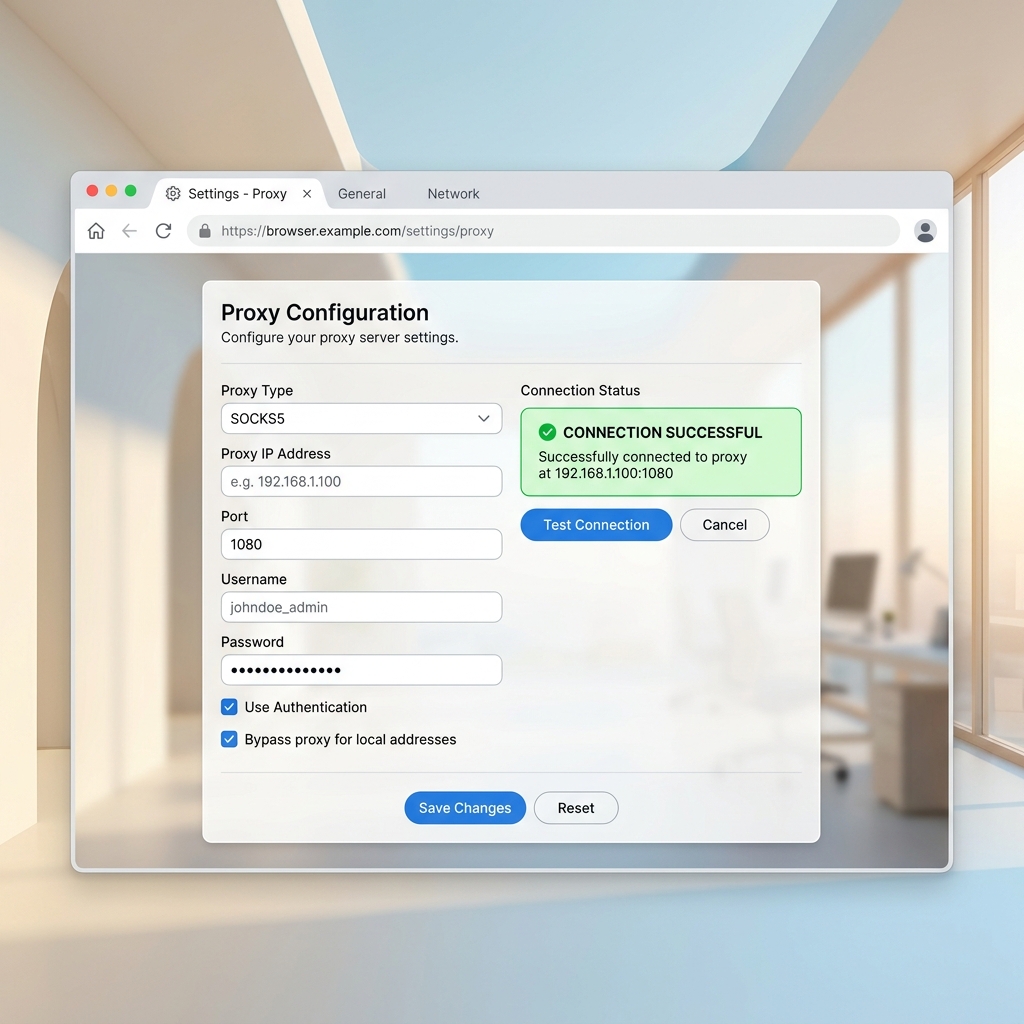
Step 5: Test the Proxy Connection
AdsPower features an integrated connection tester. Click the "Check Proxy" button located right below the input fields. The system will perform an active handshake with the proxy gateway.
Upon success, a green status badge will appear displaying: "Connection Test Successful", followed by the tested IP address, country code, and ISP information. If the test fails, check your login credentials and ensure you have active traffic credits in your Turbo Proxy dashboard.
Step 6: Save and Run
Once the connection check succeeds, scroll to the bottom of the page and click "OK" to save the browser profile. Navigate to your Profile List, find your newly created profile, and click the blue "Open" button. AdsPower will launch an isolated browser instance fully routed through your Turbo Proxy connection.
Understanding Sticky Sessions vs. Rotating IPs
Depending on your target operations, you can modify the connection behavior of Turbo Proxy inside AdsPower:
- Sticky Sessions (Recommended for Logins): If you are managing social media or e-commerce accounts, you need the same IP to persist during your session. Use the username structure
user-session-[ID]to stick to a single IP address for up to 30 minutes. - Per-Request Rotation (Recommended for Scraping): If you are running price comparison scrapers or heavy web crawlers in AdsPower, configure the username to rotate IPs automatically on every single request.
Troubleshooting Common Issues
1. Test Connection Fails (Timeout)
Verify that your firewall or anti-virus software is not blocking the outbound connection on port 7000 (or other proxy ports). If you are inside a corporate network, ensure that custom TCP ports are not restricted by local network policies.
2. Geo-location Mismatch
If the IP displays a different country than requested, make sure you have appended the country code prefix to your proxy username (e.g., user-zone-us for the United States).
3. High Latency or Captchas
If your target site shows too many captchas, switch from Datacenter proxies to Rotating Residential or Rotating Mobile proxies. Residential IPs have higher trust scores and pass security checks seamlessly.