
1. Direct Browser-Level Proxy Settings
Unlike Google Chrome, Microsoft Edge, and Opera, **Mozilla Firefox** features its own independent network stack. This allows you to configure a proxy server directly inside Firefox without altering your operating system's global network settings.
This direct configuration is highly useful for multi-tasking: you can browse normally on your local IP address in Chrome while routing your automated accounts, scrapers, or anonymous browsing sessions through a **Turbo Proxy** connection in Firefox.
Firefox also has advanced configurations that prevent common information leaks (such as DNS leaks and WebRTC leaks), making it one of the most popular browsers for privacy-conscious users.
2. Firefox Manual Proxy Setup (Step-by-Step)
Follow these manual steps to configure Firefox to route its traffic through a proxy server:
Step 1: Open Settings
Launch Firefox. Click the three horizontal lines (the hamburger menu) in the top-right corner of the window and select Settings (or "Preferences" on macOS).
Step 2: Scroll to Network Settings
On the General panel, scroll all the way to the bottom until you find the **Network Settings** section. Click the "Settings..." button next to it.
Step 3: Select Manual Proxy Configuration
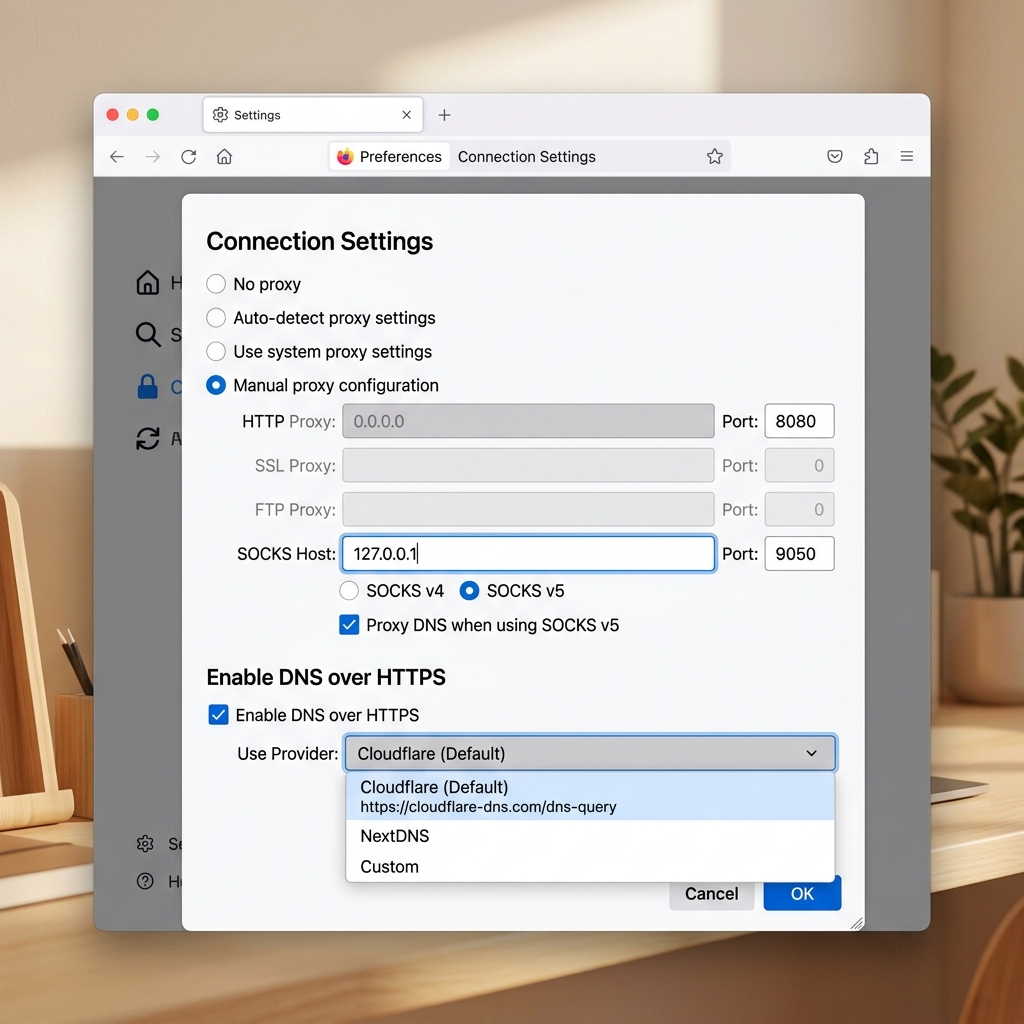
In the Connection Settings dialog box, select the "Manual proxy configuration" radio button.
Step 4: Input Proxy Gateways
Enter your connection credentials depending on the proxy protocol you want to use:
- For SOCKS5 Proxies (Recommended): Leave the HTTP/HTTPS fields blank. Go down to the SOCKS Host field, enter
gate.turboproxy.online, and input your assigned SOCKS port (e.g.,7000). Ensure **SOCKS v5** is selected. - For HTTP/HTTPS Proxies: Go to the HTTP Proxy field, input
gate.turboproxy.online, and input your proxy port.
3. Resolving DNS Queries via SOCKS5 (Crucial for Privacy)
When using a SOCKS5 proxy, a common vulnerability is **DNS leakage**—where your browser resolves domain names using your local ISP's DNS servers instead of routing the request anonymously through the proxy.
To prevent this inside Firefox, check the box next to "Proxy DNS when using SOCKS v5" located right below the SOCKS Host text field. This forces Firefox to execute DNS resolution remotely through the SOCKS5 proxy gateway, masking your local ISP completely.
Once configured, click OK. When you open a website, Firefox will request your proxy username and password credentials. Enter them to activate the proxy.
4. Using Firefox Proxy Extensions
If you need to switch between different proxy ports or locations frequently, manual configuration can become tedious. We recommend installing extension plugins:
- FoxyProxy Standard: A popular, free proxy management tool for Firefox. You can pre-define multiple proxy servers and switch between them with a single click in the browser toolbar.
- Proxy SwitchyOmega: Offers advanced proxy switching rules, allowing you to route specific URLs through different proxies automatically.
Troubleshooting Common Connection Issues
1. Firefox shows "The proxy server is refusing connections"
Double-check that the proxy host address and port number are entered correctly. If they are correct, verify that your computer is connected to the internet and that your proxy subscription is active on the Turbo Proxy dashboard.
2. Firefox asks for proxy password continuously
This indicates authentication failed. Make sure there are no trailing spaces in your username or password. If you have active IP whitelist settings on your dashboard, check if your current IP has changed.