
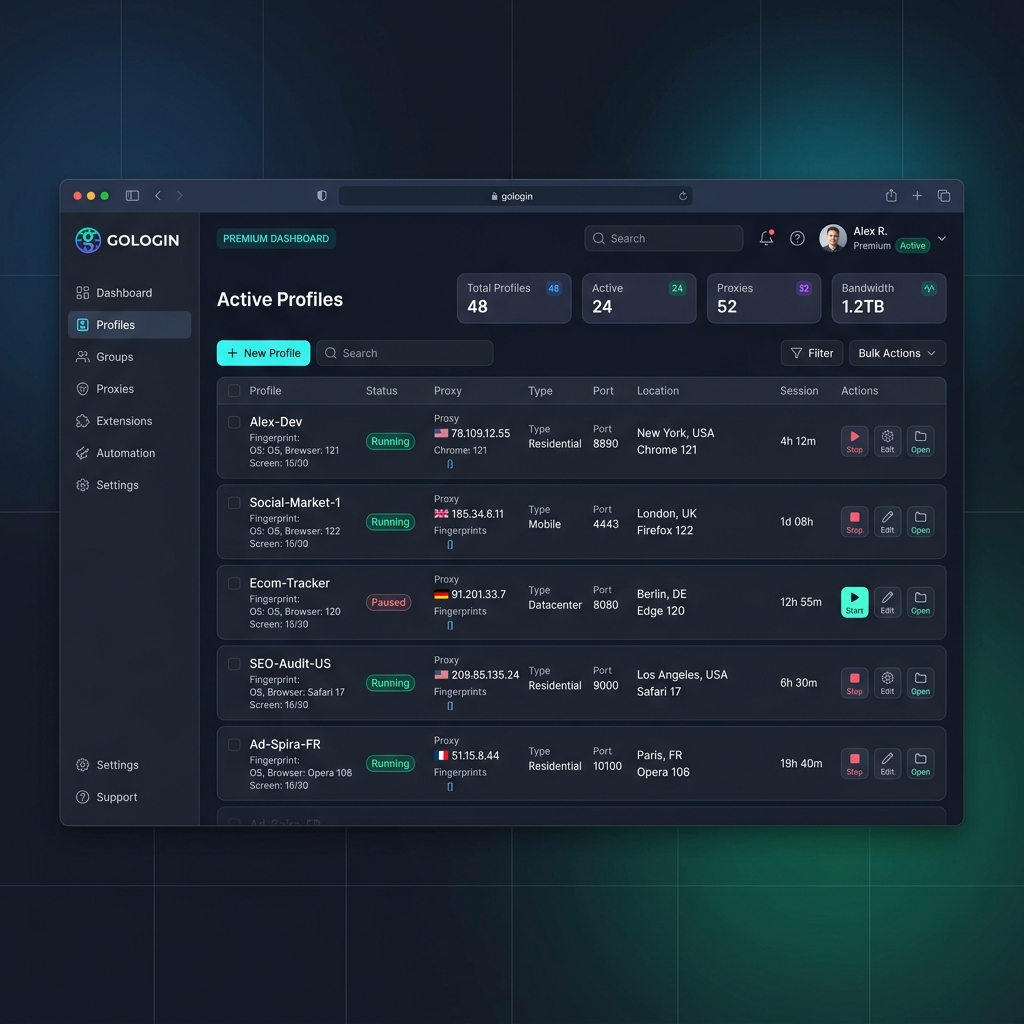
Introduction to GoLogin and Proxies
GoLogin is a widely adopted anti-detect browser designed for managing hundreds of separate browser profiles, each with a unique digital fingerprint. It is heavily used by performance marketers, Amazon and eBay sellers, and social media agencies who need to operate multiple accounts across the same platform without triggering bans.
While GoLogin handles fingerprint isolation, you still need clean, unique IPs per profile. Turbo Proxy provides rotating residential and mobile proxies that supply a fresh, ISP-grade IP address for every session — keeping your accounts fully separated at the network layer.
Prerequisites
Get your proxy credentials from the Turbo Proxy dashboard:
- Proxy Gateway:
gate.turboproxy.online - Port: e.g.,
7000 - Username: Your custom username
- Password: Your proxy account token
Step-by-Step Configuration in GoLogin
Step 1: Open GoLogin and Create Profile
Launch GoLogin and sign in. Click "+ New Profile" from the main screen. Give your profile a name and select its base operating system.
Step 2: Navigate to Proxy Tab
In the profile editor, click the "Proxy" tab on the left side. GoLogin supports several proxy modes: No Proxy, HTTP, HTTPS, SOCKS4, and SOCKS5. Select SOCKS5 for best performance.
Step 3: Enter Proxy Details
Step 4: Check Proxy
Click "Check proxy" (the refresh icon next to the proxy fields). GoLogin will display the resolved IP address, country flag, and ISP name on success. If it fails, double-check your port and credentials.
Step 5: Save Profile and Launch
Click "Create" to save the profile. From the profile list, hit "Run". A new isolated Chromium window launches with the proxy active and fingerprint applied.
Troubleshooting
1. DNS leaks detected
Enable "Route DNS through proxy" in GoLogin's advanced proxy settings. SOCKS5 supports remote DNS resolution, which prevents your real DNS server from being exposed.
2. Profiles getting banned quickly
Use sticky session proxies to maintain the same IP for the full login and activity session. Rotating IPs mid-session causes sudden IP changes that trigger fraud detection systems.