
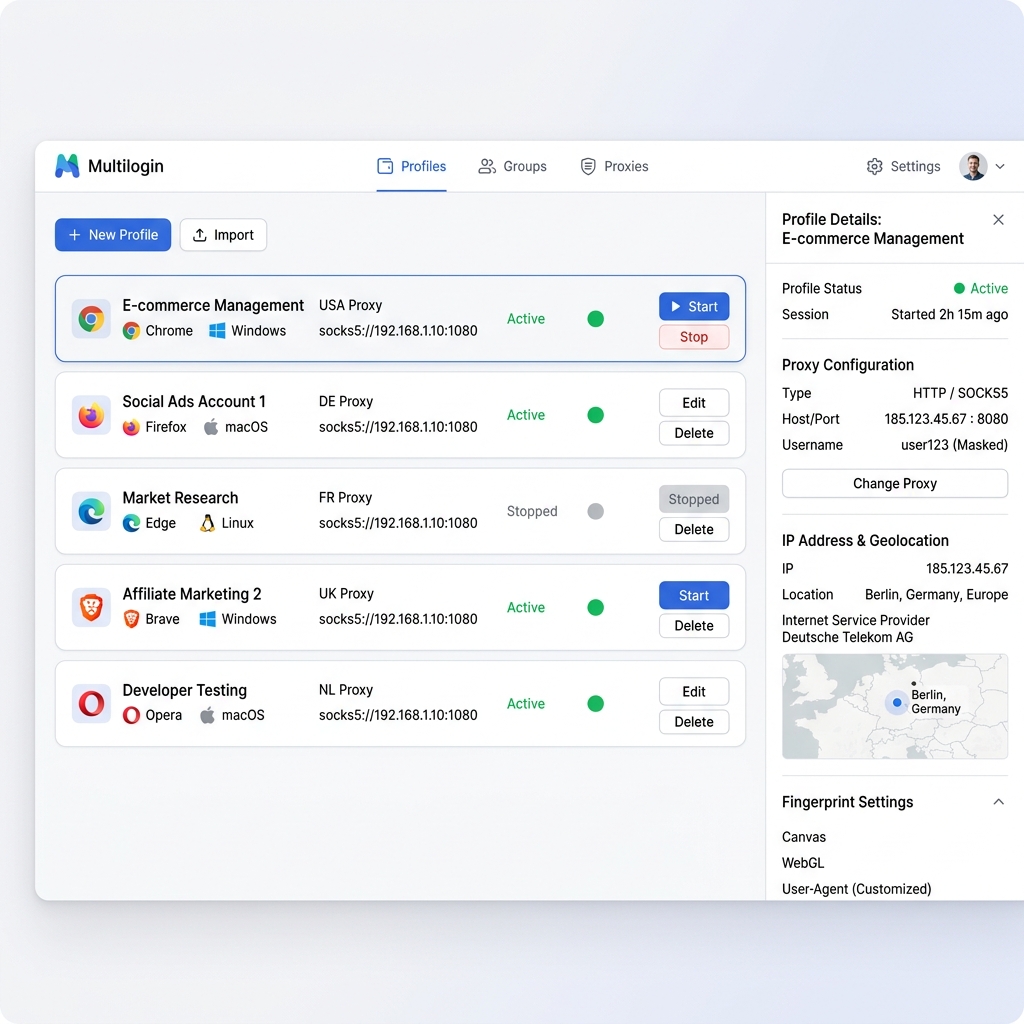
Why Multilogin Requires High-Quality Proxies
Multilogin is one of the industry-standard anti-detect browsers, designed to help developers and marketers run isolated browser sessions. It emulates real browser hardware parameters via custom engine modifications: **Mimic** (based on Chromium) and **Stealthfox** (based on Firefox).
When utilizing Multilogin, local browser profile data (cookies, local storage, history) and structural fingerprints are cleanly separated. However, if multiple profiles make requests using the same network connection, web servers will quickly flag and block all accounts. To maintain isolation, you must configure a distinct IP address for each profile.
Using **Turbo Proxy** with Multilogin ensures your profiles route through genuine ISP residential networks or mobile ASN nodes. This ensures that even highly sensitive platforms (such as Amazon, eBay, Google Ads, and Facebook Ads) see your profiles as normal retail customers browsing from residential locations.
Proxy Credentials Check
Retrieve the proxy details from your Turbo Proxy user dashboard. You will need:
- IP/Host:
gate.turboproxy.online - Port: e.g.,
7000for SOCKS5/HTTP gateways - Username: e.g.,
user-zone-us-sess-20m - Password: Your proxy auth password
Configuring Proxies in Multilogin (Step-by-Step)
Step 1: Create a New Profile
Launch the Multilogin application on your desktop. Click the green "New Browser Profile" button in the top-left corner of the dashboard screen.
Step 2: Profile Selection & Operating System
Enter a name for the profile. Under the **Operating System** section, match the OS of your local machine to keep the user-agent and device architecture consistent. Select either **Mimic** or **Stealthfox** as your browser engine.
Step 3: Access the Proxy Configuration Menu
In the left sidebar of the profile configuration wizard, click on the "Proxy" tab. In the main configuration panel, click "Edit proxy settings".
Step 4: Select Proxy Protocol
Multilogin supports multiple proxy protocols. Click the **Connection type** dropdown list and choose one of the following:
- SOCKS5 Proxy: Highly recommended. SOCKS5 supports UDP packets and performs DNS resolution through the proxy gateway, preventing local DNS leaks.
- HTTP Proxy: Compatible with all standard web browsing tasks.
Step 5: Fill in Host and Authentication Details
Enter the connection details for your Turbo Proxy package:
Step 6: Check Connection
After filling in the details, click the blue "Check Proxy" button. Multilogin will initiate a ping/connection check to our proxy pool.
If configured correctly, you will see a green status response saying: "Proxy connection passed" along with the target IP address and country name.
Step 7: Match Browser Timezone & Geolocation
To achieve high trust scores, your browser profile's settings must match the timezone and coordinates of the proxy IP.
- Timezone: In Multilogin's timezone menu, check "Enable timezone based on IP". This automatically updates the browser clock timezone to match the proxy server.
- WebRTC: Set WebRTC settings to "Real" or "Altered" to ensure your WebRTC IP matches the proxy IP.
- Geolocation: Check "Prompt based on IP" or "Allow based on IP". This emulates coordinates inside the proxy's city.
Step 8: Save and Launch
Click "Create Profile". In your profile list, locate the profile and click "Start". A custom browser window will open. You can check your IP by visiting https://whoer.net or https://iphey.com to verify a 100% clean profile reputation.
Best Practices for Multilogin Proxy Setup
- Always use SOCKS5 over HTTP: SOCKS5 offers better encryption and avoids leaking your local IP through headers.
- Avoid mixing regions: If your proxy IP is in Germany, do not set your profile language to Japanese. Let Multilogin automatically adapt browser languages to match the proxy IP's location.
- Keep static profiles clean: When logging into merchant accounts, use Turbo Proxy's **Static Residential IPv4** or **Sticky Rotating** proxies. Using random per-request rotation will trigger security alerts if your location jumps between different cities on every page load.