
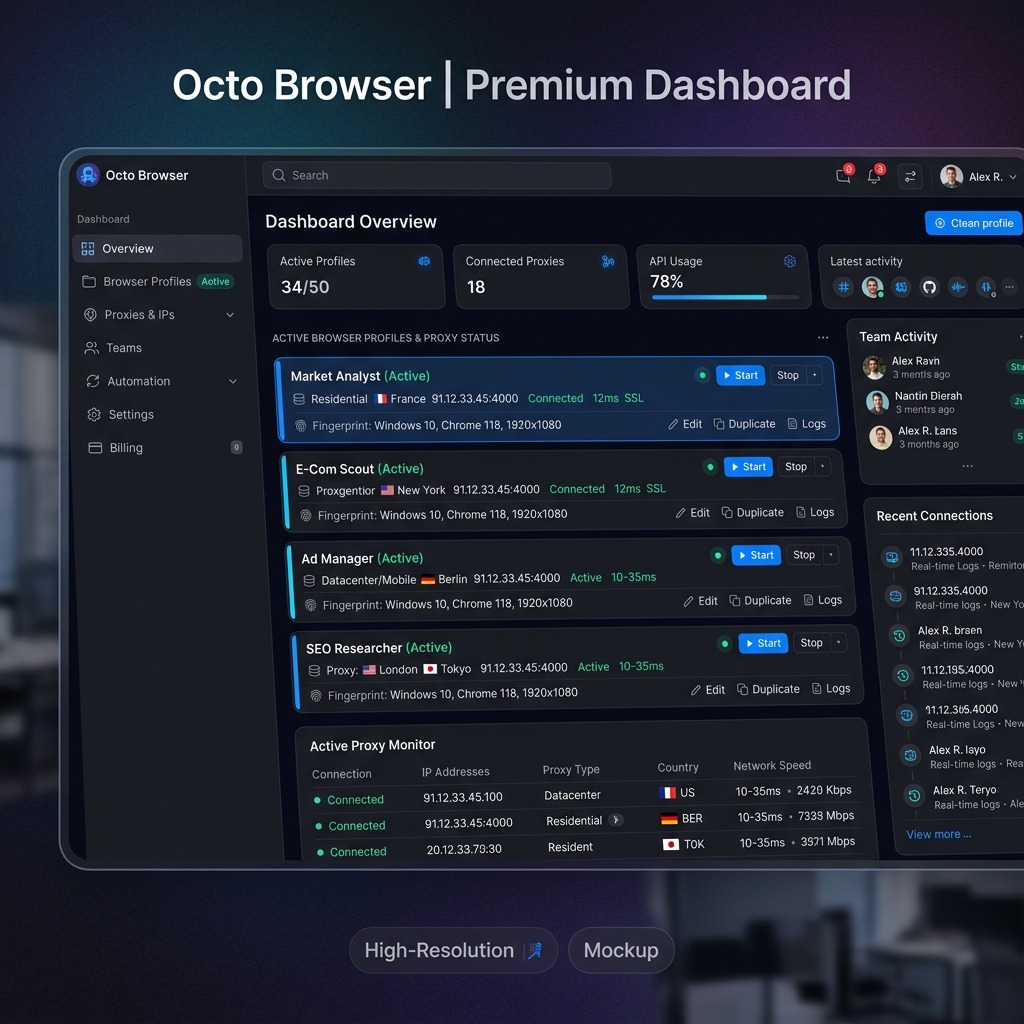
Introduction to Octo Browser and Proxies
Octo Browser is a premium anti-detect browser used by professional e-commerce sellers, crypto traders, and affiliate marketers who operate multiple isolated accounts simultaneously. Each Octo Browser profile has a unique, synthetic browser fingerprint — but fingerprint isolation alone is not enough. Every profile must also appear to originate from a different physical location and network.
By routing each Octo Browser profile through a dedicated Turbo Proxy residential or mobile IP, you guarantee that every account appears to originate from a different real-world household or mobile device, making account correlation virtually impossible.
Prerequisites
Retrieve your proxy credentials from the Turbo Proxy dashboard:
- Proxy Gateway:
gate.turboproxy.online - Port: e.g.,
7000 - Username: Your custom username
- Password: Your proxy account token
Step-by-Step Configuration in Octo Browser
Step 1: Launch Octo Browser
Open Octo Browser and log in to your account. From the main dashboard, click the "+ New Profile" button in the top-right corner to create a new browser profile.
Step 2: Go to Proxy Settings
In the profile creation dialog, navigate to the "Proxy" tab. By default, profiles use "No Proxy". Click the dropdown and select SOCKS5 (recommended) or HTTP.
Step 3: Enter Proxy Credentials
Fill in the proxy fields:
Step 4: Test the Connection
Click "Check Proxy". Octo Browser will verify connectivity and display the IP geolocation (country, city, ISP). A green status confirms a successful connection.
Step 5: Save and Open Profile
Click "Create Profile" to save. Your new profile will appear in the profile list. Click "Start" to launch it — the browser opens with the assigned proxy and fully isolated fingerprint.
Troubleshooting Connection Failures
1. "Proxy check failed" error
Verify the port number and protocol match. Make sure SOCKS5 is selected if you intend to use SOCKS5, and HTTP if using HTTP. Mismatching protocol types is the most common cause.
2. Account flagged despite proxy
Switch from datacenter to Turbo Rotating Residential proxies. Platforms like Amazon or eBay actively flag datacenter IP ranges. Residential IPs from real ISPs are significantly harder to detect.